Introduction
Have you ever wanted to share your website, Instagram profile, WhatsApp contact, and other important pages—but had room for only one link? A link in bio QR code generator can help solve that problem.
It creates a QR code that opens a simple landing page with multiple links. Instead of asking someone to search for your profiles or type a long web address, you can invite them to scan once and choose the page they need.
This can be useful for creators, small businesses, restaurants, events, and anyone who shares links both online and offline.
What Is a Link in Bio QR Code Generator?
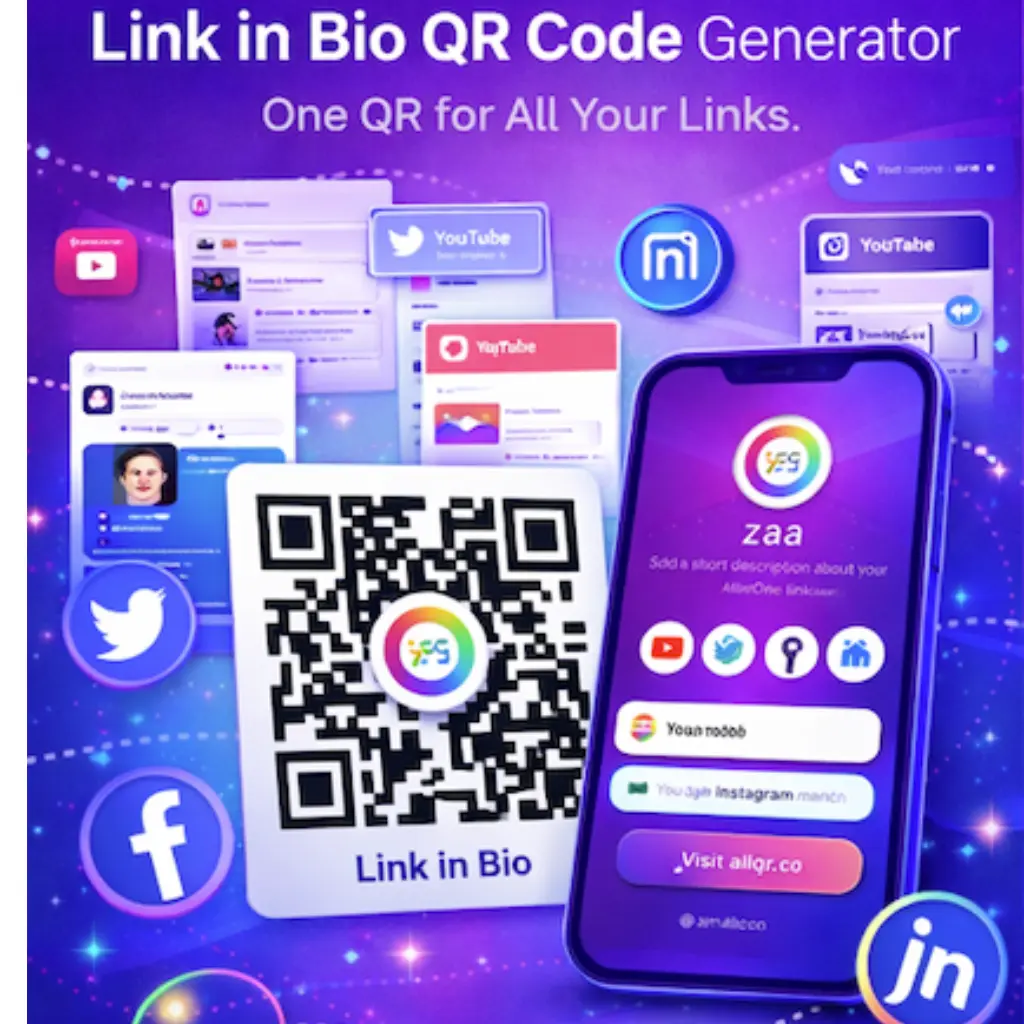
A link in bio QR code generator is a tool that creates a QR code connected to a landing page containing several links. The page works like a mini website: visitors scan the code, see the available options, and tap the one they want.
For example, a photographer could create one page with their portfolio, Instagram, booking form, WhatsApp contact, and pricing information. They can then share one QR code on a printed business card or at an event.
The QR code itself does not display all the links. It opens the link page, where visitors can choose where to go.
Why Use a Link in Bio QR Code?
1. Share several destinations with one scan
A single QR code can lead visitors to a page that gathers your most useful links in one place. This is handy when you have more than one social profile, service, or contact option.
2. Connect offline materials to online content
A QR code can be printed on business cards, posters, packaging, flyers, menus, or event signs. People can scan it with their phone and open your link page without manually searching for your brand.
3. Keep your information organized
A well-arranged link page gives visitors a clear set of choices. You can group related destinations and use short labels, such as “View Menu,” “Message Us,” or “See Our Work.”
4. Make the next step easier to understand
A QR code is most useful when people know what they will get after scanning. Pair it with a simple instruction such as “Scan to view our links” or “Scan for menu, location, and orders.”
What to Include on Your Link in Bio Page
Choose links based on what your visitors are likely to need. You do not have to add every page you own.
Common options include:
- Website: your homepage, store, or service page
- Social media: Instagram, YouTube, or other active profiles
- WhatsApp: a direct way to ask questions or contact your business
- Products or services: a catalog, booking page, or service details
- Restaurant information: digital menu, ordering page, or location
- Events: registration, schedule, or venue information
- Payments: a relevant payment link, if appropriate for your use case
For a small business, a useful starting set might be: website, services, WhatsApp, and location. Keep the page focused so visitors can find the right option quickly.
How to Create a Link in Bio QR Code
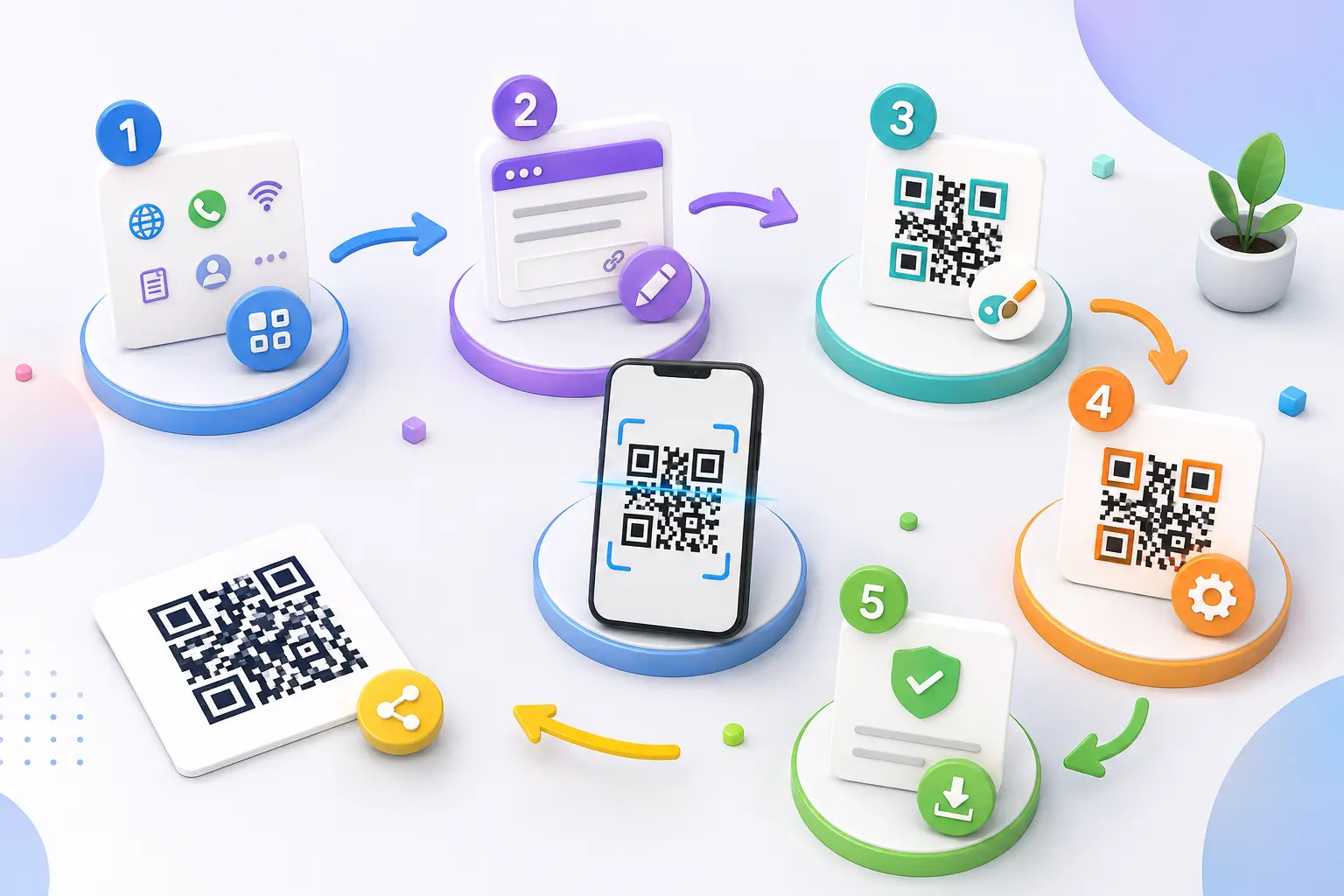
You can create a link page and connect it to a QR code by following these steps.
Step 1 – Open an All-in-One or Link-in-Bio Tool
Start with a tool that supports a page containing multiple links. AllQR’s All-in-One service is the relevant starting point for creating a multi-link page and QR experience.
Step 2 – Add the Links You Want to Share
Enter the destinations you want visitors to access. These might include your website, social profiles, WhatsApp, menu, or booking page.
Before adding a link, open it yourself and confirm that it works and points to the correct page.
Step 3 – Arrange and Label the Links
Put the most important destination near the top. Use labels that tell people exactly what they will see after tapping.
For example, “View Our Menu” is clearer than “Click Here.” “Chat on WhatsApp” gives visitors a better idea of what will happen than a label that only says “Contact.”
Step 4 – Customize the Page and QR Code
If customization options are available, use a design that fits your brand while keeping the page easy to read. Avoid excessive decoration or unclear buttons.
For the QR code, make sure the design remains high contrast and scannable. A visually attractive code is not helpful if a phone camera struggles to read it.
Step 5 – Test the Page and Scan the Code
Open the link page on a phone and check that:
- The page loads correctly.
- The buttons are readable and easy to tap.
- Each link opens the intended destination.
- The page works on a mobile screen.
- The QR code scans and opens the link page.
Testing matters especially when the code will be printed in quantity or placed somewhere visitors may only have a short time to scan it.
Step 6 – Download and Place the QR Code
Download the QR code in a suitable quality for your planned use. Add it to your business card, poster, packaging, menu, or event display.
Include a short call to action next to it, such as “Scan to explore all our links.” Test a printed sample at its actual size before printing a large batch.
Practical Examples and Use Cases
1.For Small Businesses
A local service business might want to share its website, service list, WhatsApp contact, and location. Instead of printing separate URLs on a flyer, it can use one QR code that opens a link page with those options.
If you also need a direct chat destination, you can create a dedicated WhatsApp QR code for a campaign that focuses specifically on starting conversations.
2.For Creators and Influencers
A creator may have a portfolio, Instagram account, YouTube channel, and collaboration inquiry form. A link page lets followers choose the destination that interests them.
If your main goal is to send people directly to Instagram, use a dedicated Instagram QR code generator . A link-in-bio page is more suitable when you want to offer several destinations together.
3.For Restaurants
A restaurant could use a link page to provide its menu, ordering option, location, and contact details. Place the QR code on a takeaway flyer or at the counter, with a clear prompt such as “Scan for menu and orders.”
For a menu-focused experience, a dedicated restaurant menu QR page may be a more direct fit.
4.For Events
An event organizer could gather the registration page, schedule, venue map, and contact details in one place. The QR code can be printed on posters, badges, or handouts, helping attendees find event information without searching for each page separately.
Common Mistakes to Avoid
1.Adding too many links
A page filled with links can make it harder for visitors to decide what to tap. Start with the most useful destinations and add more only when they serve a clear purpose.
2.Using unclear button text
Labels such as “Click Here” do not explain what happens next. Use action-based wording like “View Portfolio,” “Get Directions,” or “Contact Us.”
3.Forgetting to test the QR code
Scan the final code with a phone before publishing or printing it. Check the actual destination and test the printed version if you plan to use it on physical materials.
4.Assuming scans equal conversions
Scan counts can show that people interacted with a QR code, but they do not automatically tell you whether someone made a purchase, booked a service, or completed another goal. To understand those outcomes, you may need suitable website or campaign tracking in addition to scan data.
Frequently Asked Questions
1.What is a link in bio QR code?
It is a QR code that opens a page containing several links, such as a website, social profiles, contact options, or product pages. Visitors scan once and choose the destination they need.
2.Can one QR code open multiple links?
One code can open a link page that lists multiple destinations. Visitors generally tap a link on that page to open the specific site or service they want.
3.Can I change the links later?
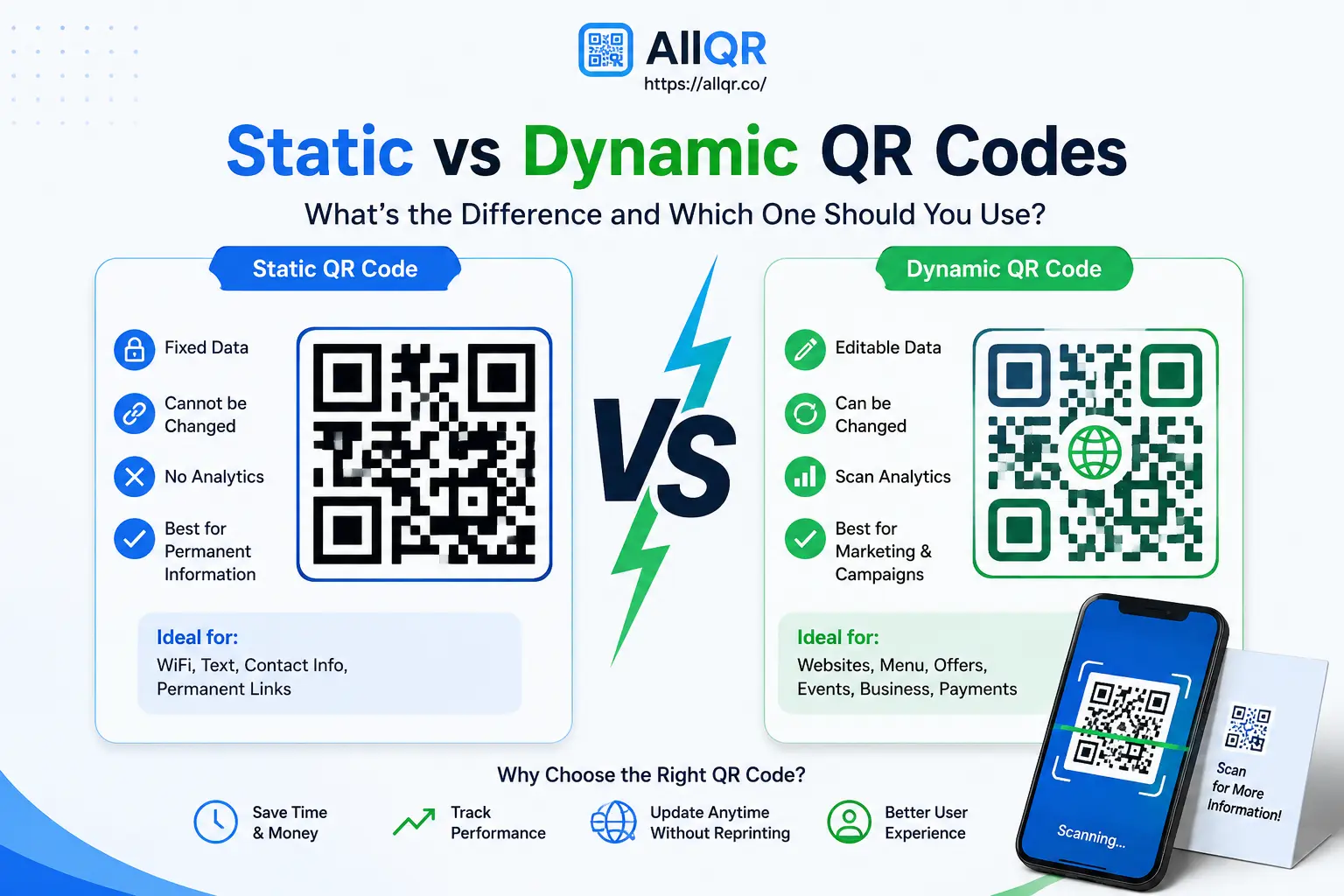
That depends on the tool and the type of QR code or link page you use. Before printing, check whether the service lets you edit the page and whether any changes require a particular plan.
4.Where can I use a link in bio QR code?
You can place it on business cards, posters, packaging, flyers, event materials, menus, or other places where people may want quick access to your online information.
5.Can I track QR code scans?
Some QR code services offer scan analytics. Check which metrics are included and whether analytics are available for the specific QR code type and plan you choose.
6.Is a link in bio QR code useful for businesses?
It can be useful when a business needs to share several destinations—such as a website, service information, location, and contact method—without printing a long list of URLs. The page should be organized around what customers actually need.
Conclusion
A link in bio QR code gives people one simple way to reach several useful destinations. It can help creators, businesses, restaurants, and event organizers connect printed materials with their online information.
The key is to keep the page focused, label each link clearly, and test the whole experience on a phone before sharing it. Choose the destinations that matter most to your audience, then make them easy to find.
Ready to set up your own multi-link experience? Start with AllQR’s All-in-One service and create a page that brings your important links together.