Introduction
QR codes give customers a quick way to access business information using their smartphones. Instead of typing a long website address or searching for a social media profile, customers can scan a code and reach the right page.
For small businesses, shops, restaurants, freelancers, and event organizers, QR codes can make everyday tasks simpler. They can help share menus, collect inquiries, provide Wi-Fi access, display product information, and connect printed materials with online services.
A free QR code generator for business can help you create QR codes for different purposes. The right tool depends on what you want customers to access and whether you need additional features such as branding, editable destinations, or scan analytics.
What Is a QR Code?
A QR code, short for Quick Response code, is a type of two-dimensional barcode that a smartphone camera can scan to access information.
Depending on how it is created, a QR code can open a website, connect to a Wi-Fi network, display contact details, or direct customers to an online service.
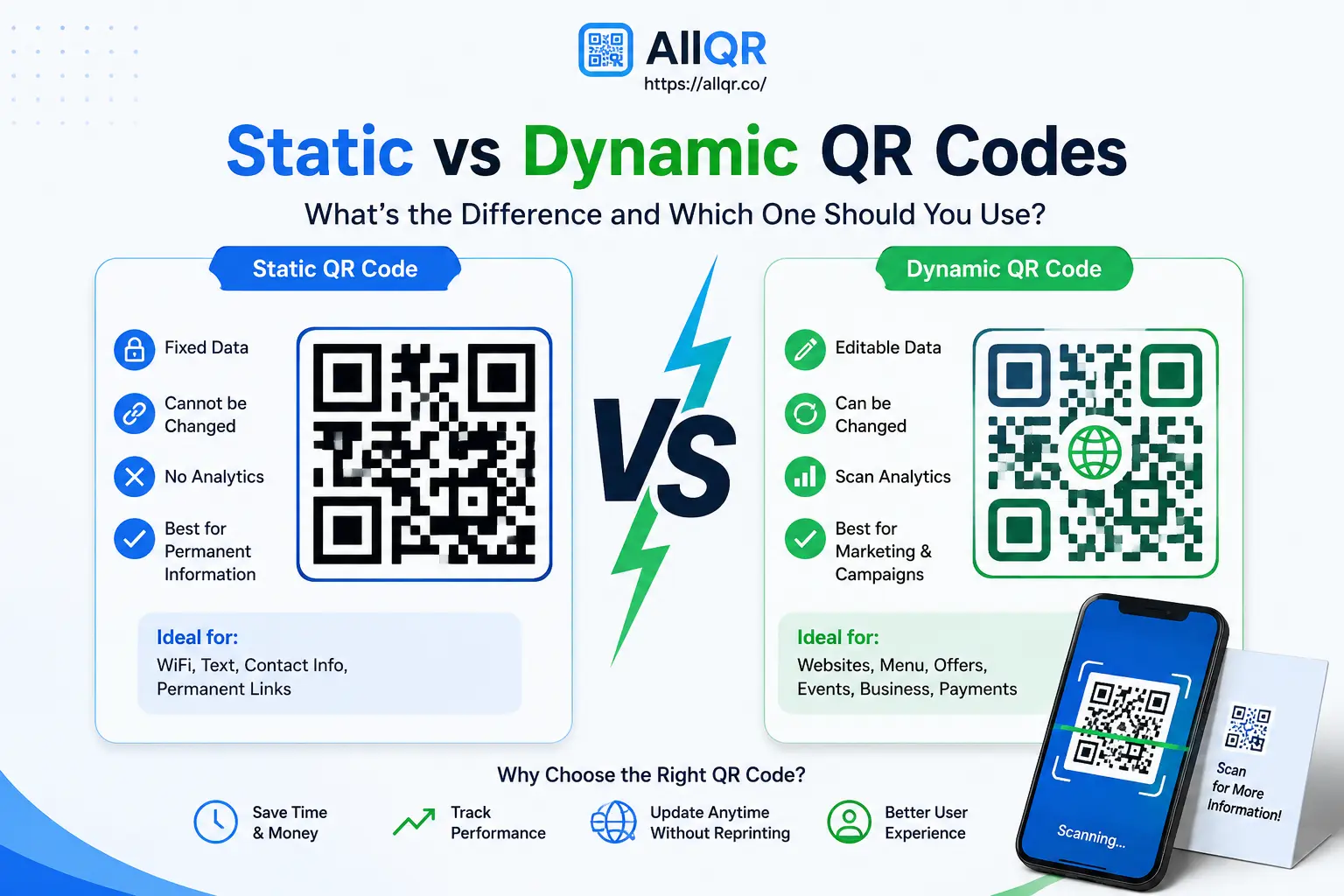
There are two common types:
- Static QR codes: Contain fixed information. They are useful when the destination is unlikely to change.
- Dynamic QR codes: Use a managed destination that may be updated without replacing the printed code, depending on the provider and setup.
For example, a clothing shop can place a QR code on its packaging to link to its website. A restaurant might use a dynamic QR code to keep the same printed code while updating its online menu.
What Do You Need to Create a QR Code?
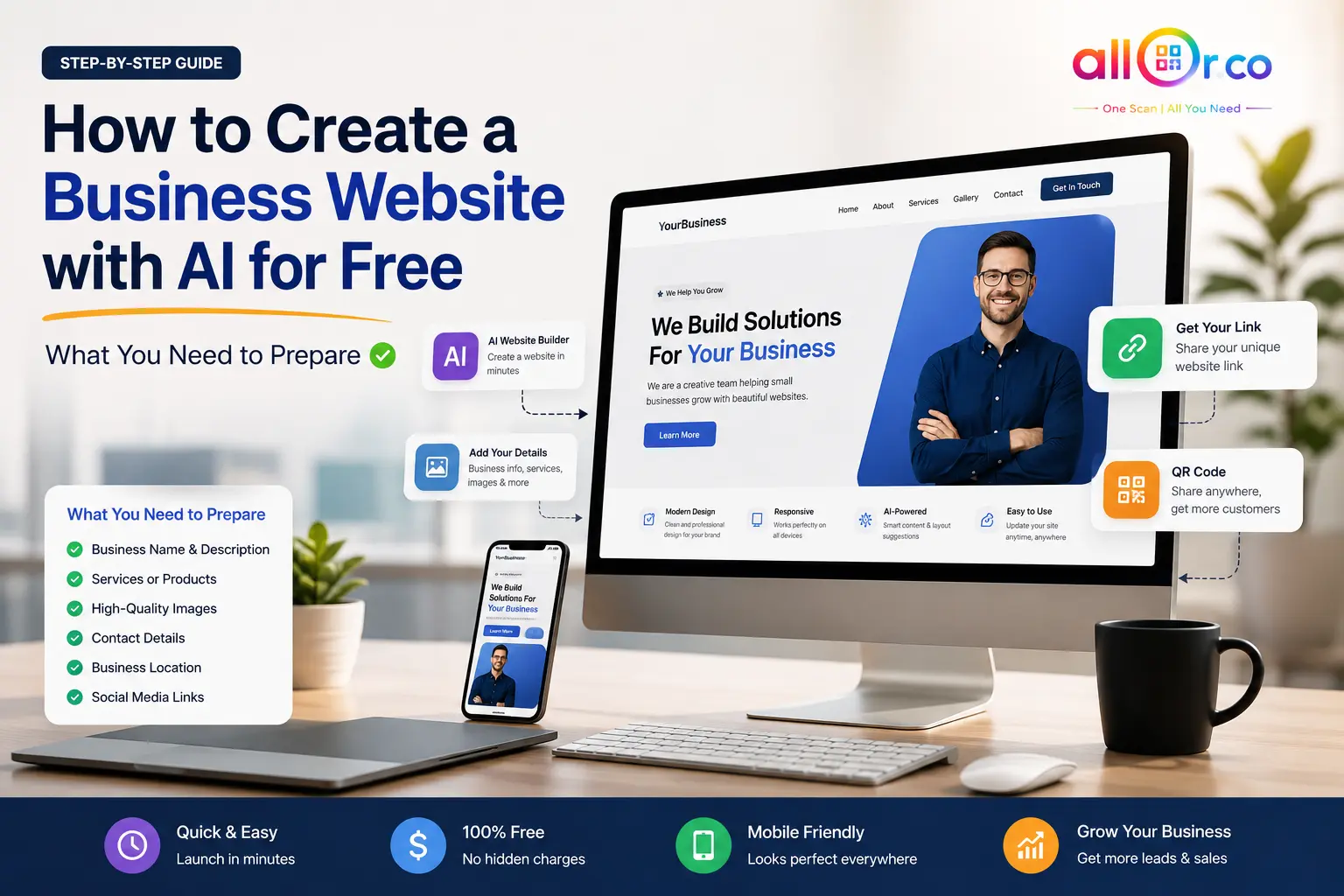
Before creating a QR code, prepare the following:
- The website URL or information you want to share.
- The right QR code type for your purpose.
- A mobile-friendly destination.
- Optional brand colors or a logo.
- A smartphone to test the finished code.
If you plan to print the QR code on business cards, packaging, posters, or menus, test it before printing in bulk.
How to Create a QR Code for Free
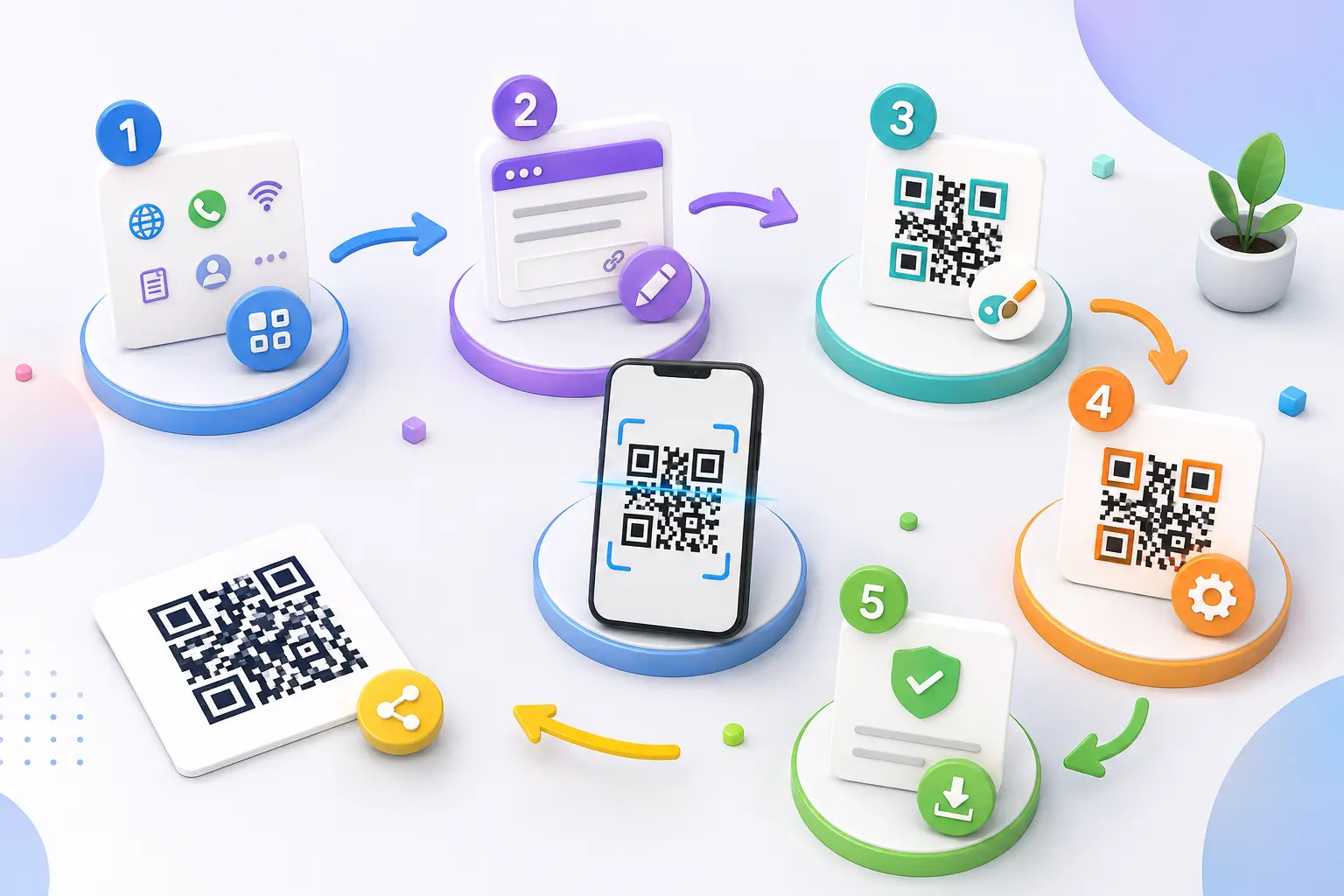
You can create a QR code in five straightforward steps.
Step 1 – Choose Your QR Code Type
Decide what you want people to access after scanning. For example, select a website QR code for your homepage or a WhatsApp QR code for customer inquiries.
Start with the AllQR Free QR Code Generator to explore QR code creation options.
Step 2 – Enter Your Information
Enter the correct website address, WhatsApp link, or other required information. Check the details carefully because an incorrect URL can send customers to the wrong page.
Step 3 – Customize Your QR Code
If customization is available, choose colors and a logo that match your business identity. Keep sufficient contrast between the QR code and the background to maintain scanning reliability.
Step 4 – Generate the QR Code
Generate the code using your selected settings. If you may need to change its destination later, check whether the service supports dynamic QR codes and whether the feature is available under your plan.
Step 5 – Test and Download
Scan the code with a smartphone and confirm that the correct destination opens. Make sure the page works properly on mobile.
Download the code in a suitable format and test a printed sample before using it across a large campaign.
For a more detailed walkthrough, read How to Create a QR Code for Free.
10 Practical Ways Businesses Can Use QR Codes
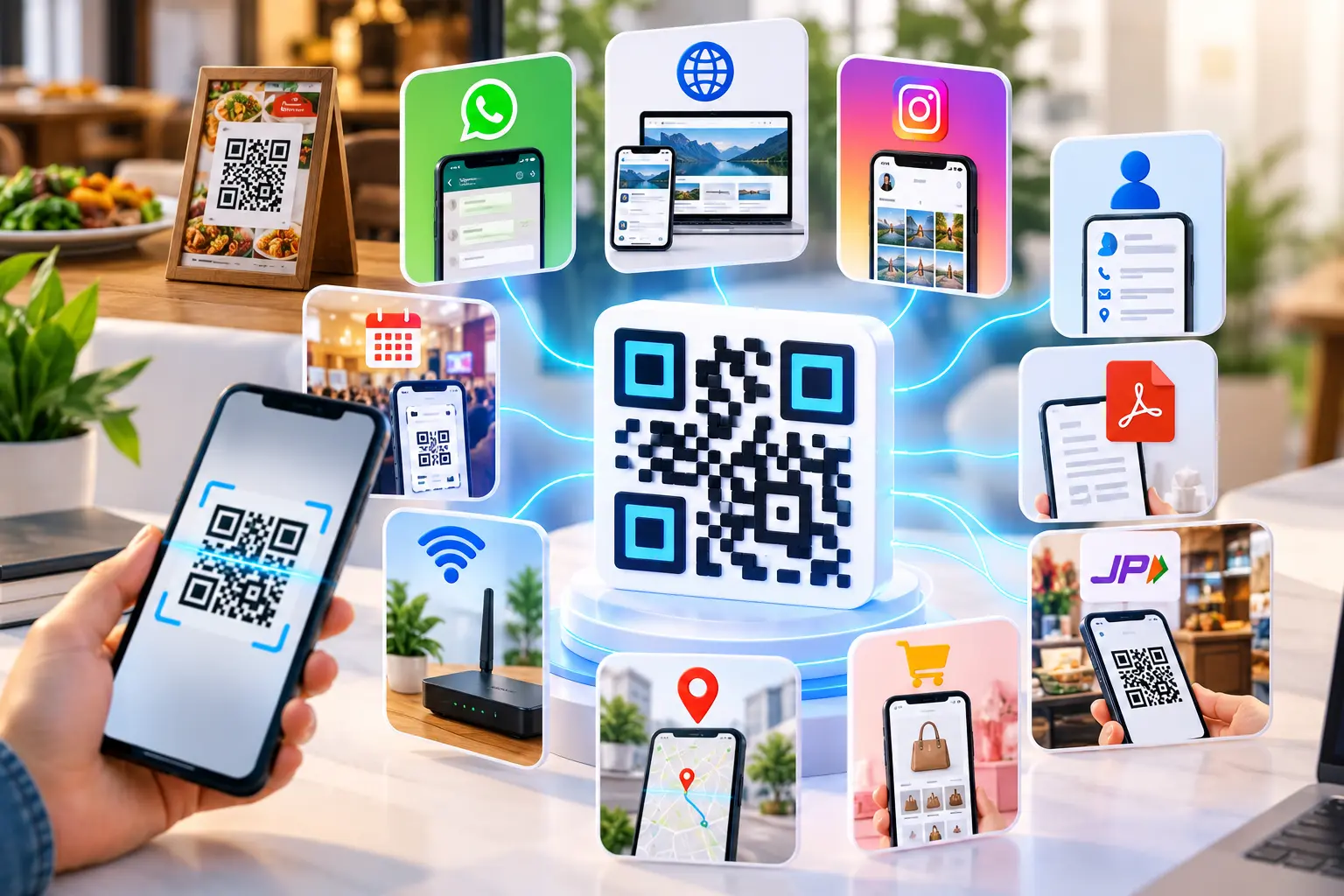
Here are ten practical examples of how businesses can use QR codes in their daily activities.
1. Website: Add a QR code to business cards, brochures, or packaging so customers can visit your website without typing the URL.
2. WhatsApp inquiries: Let customers open a business chat directly from a QR code. This is useful for appointment requests, product questions, and customer support. Try the WhatsApp QR Code Generator.
3. Wi-Fi access: Cafés, hotels, clinics, and waiting rooms can provide a Wi-Fi QR code to make network access easier for visitors.
4. PDF documents: Share brochures, product catalogues, instruction manuals, or other documents through a QR code linked to an accessible online file.
5. UPI payments: Display a compatible payment QR code at your checkout counter. Verify the recipient details and confirm payments through your payment app.
6. Contact cards: Help customers access a business owner's name, phone number, email address, or digital contact card.
7. Instagram profiles: Add a QR code to packaging or promotional materials so customers can find your business profile. Explore the Instagram QR Code Generator.
8. Restaurant menus: Place QR codes on tables so customers can open the current digital menu on their phones.
9. Product information: Link to specifications, care instructions, warranty details, or usage guides.
10. Events and feedback: Direct visitors to registration forms, event schedules, or customer feedback surveys.
The key is to give every QR code a clear purpose. Customers should know what they can expect when they scan it.
How to Create QR Codes for Different Purposes
The basic process is similar, but the information you enter depends on the QR code type.
Website
Copy your complete website URL and use a website QR code. Test the link on a phone before printing or sharing it.
Use a compatible WhatsApp QR code or chat link. Confirm that it opens the intended conversation and that any prefilled message is correct.
Wi-Fi
Use a Wi-Fi QR code generator that supports your network name, security type, and password. Share the code only with people who should have network access.
Upload the PDF to a suitable hosting service and ensure that the intended audience can access it. Generate a QR code using the document's URL, then test it without relying on an administrator login.
UPI
Use a QR code generated through a trusted, compatible payment service. Check the recipient information before displaying it to customers.
Contact Card
Choose a contact QR code if available, or link to a digital contact card. Test whether the details display correctly and can be saved on different smartphones.
If you need to manage a destination after printing, explore the Dynamic QR Code Generator. For shorter links that are easier to share, see AllQR URL Shortening or the URL Shortener.
Tips Before Printing Your QR Code
A QR code that scans on your computer screen may not work as reliably when printed. Follow these practical checks:
- Maintain contrast: Make the code clearly visible against its background.
- Choose the right size: Consider the scanning distance and where the code will be placed.
- Leave clear space: Keep text, borders, and graphics away from the code's edges.
- Check the destination: Make sure the page opens correctly and is mobile-friendly.
- Test a printed sample: Scan it under the lighting conditions where customers will use it.
- Use a suitable file format: Choose a high-resolution or vector format when supported by your generator and printing workflow.
Common QR Code Mistakes to Avoid
Avoid these common problems:
- Linking to an incorrect or broken URL.
- Making the design too complicated to scan.
- Printing the code too small for the intended scanning distance.
- Sending users to a page that does not match the QR code's label.
- Assuming every free QR code supports destination editing.
- Assuming analytics, unlimited scans, or permanent access are included without checking the provider's terms.
Always test the full experience, from scanning the code to accessing the destination.
FAQs
1. Can I create a QR code for free for my business?
Yes. Many tools offer free QR code creation. However, features such as dynamic editing, analytics, and advanced branding may depend on the provider and plan.
2. Do free QR codes expire?
Static QR codes generally continue to work as long as their encoded destination remains valid. Dynamic QR codes may depend on the provider, subscription, redirect service, or account status.
3. Can I change a QR code destination after printing?
You generally cannot change the information encoded in a static QR code. A dynamic QR code may let you update the destination without replacing the printed code, depending on the service.
4. Can I add my business logo to a QR code?
Some QR code generators support logos and design customization. Keep enough contrast and test the final code on multiple phones before printing it.
5. How can I check whether my QR code works?
Scan it with different smartphones, confirm that the correct page opens, and check that the destination works on mobile. If you intend to print it, test a physical sample at its final size.
Conclusion
QR codes can help businesses share information, simplify customer interactions, and connect printed materials with online services. From website visits and WhatsApp inquiries to digital menus and event registration, the right QR code can make everyday tasks easier.
Start by identifying one business need, choose the appropriate QR code type, and test the complete experience before sharing it with customers.
You can explore the AllQR Free QR Code Generator to get started. Check the available features and terms before relying on a QR code for an important business activity.