QR codes are now used everywhere—from restaurant menus and business cards to WhatsApp chats, payments, websites, and product packaging.
The good news is that you don't need technical skills or expensive software to create one. With a free QR code generator, you can create a QR code online in just a few minutes.
In this guide, you'll learn how to create a QR code for free, what information you need, how to test it, and which type of QR code is suitable for different situations.
What Is a QR Code?
A QR code is a square-shaped code that stores information such as a website URL, contact details, WiFi credentials, text, or payment information.
When someone scans the code using a smartphone camera, the stored information can open directly on their phone.
For example, a restaurant can place a QR code on each table. Customers scan it and instantly open the digital menu instead of waiting for a printed menu.
QR codes are useful because they provide a simple bridge between something people see in the real world and digital information online.
What Do You Need to Create a QR Code?
Before creating your QR code, decide what you want people to see or do after scanning it.
Depending on your purpose, you may need:
- Website URL – for a website or landing page
- WhatsApp number or chat link – for direct customer communication
- WiFi details – for sharing network access
- PDF file or document link – for menus, brochures, or catalogs
- UPI payment details – for digital payments
- Contact information – for a digital business card
You should also have a clear idea of where the QR code will be used. A code printed on a business card needs different sizing considerations than one placed on a large poster.
How to Create a QR Code for Free
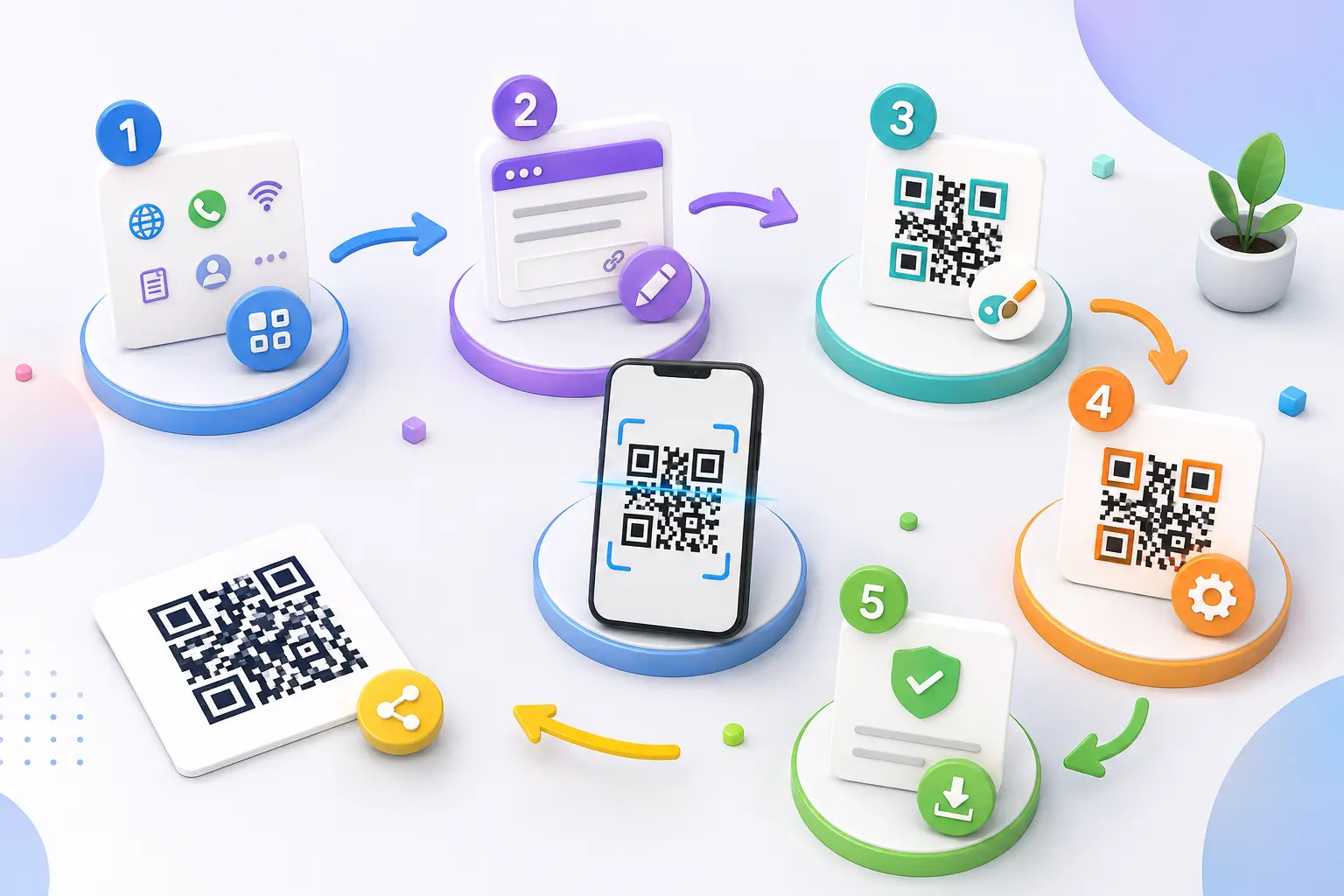
Creating a QR code doesn't have to be complicated. Follow these simple steps.
Step 1 – Choose Your QR Code Type
First, select the type of QR code you need.
For example:
- Website QR for your website
- WhatsApp QR for customer conversations
- WiFi QR for easy network sharing
- PDF QR for documents
- UPI QR for payments
- Contact Card QR for business details
Example: If you run a restaurant and want customers to open your online menu, choose a Website or Menu QR code and add your menu page URL.
Step 2 – Enter Your Information
Enter the information that you want the QR code to open.
For a website QR code, this could be:
https://example.com/menu
For WhatsApp, you can use your WhatsApp chat link. For a contact QR, enter details such as your name, phone number, email, and company information.
Tip: Always check the information before generating the code. A QR code can work perfectly but still take users to the wrong destination if the original information is incorrect.
Step 3 – Customize Your QR Code
Depending on the generator you use, you may be able to customize the QR code.
You can consider:
- Changing the QR code color
- Adding a logo
- Choosing a suitable shape or style
- Adding a frame or call-to-action
- Matching it with your brand
Don't over-customize it. Scannability should always come before design.
A stylish QR code that doesn't scan reliably is not useful.
Step 4 – Generate the QR Code
Once you've entered and checked your information, generate the QR code.
A good free QR code generator should make the process simple and allow you to create the code without unnecessary technical steps.
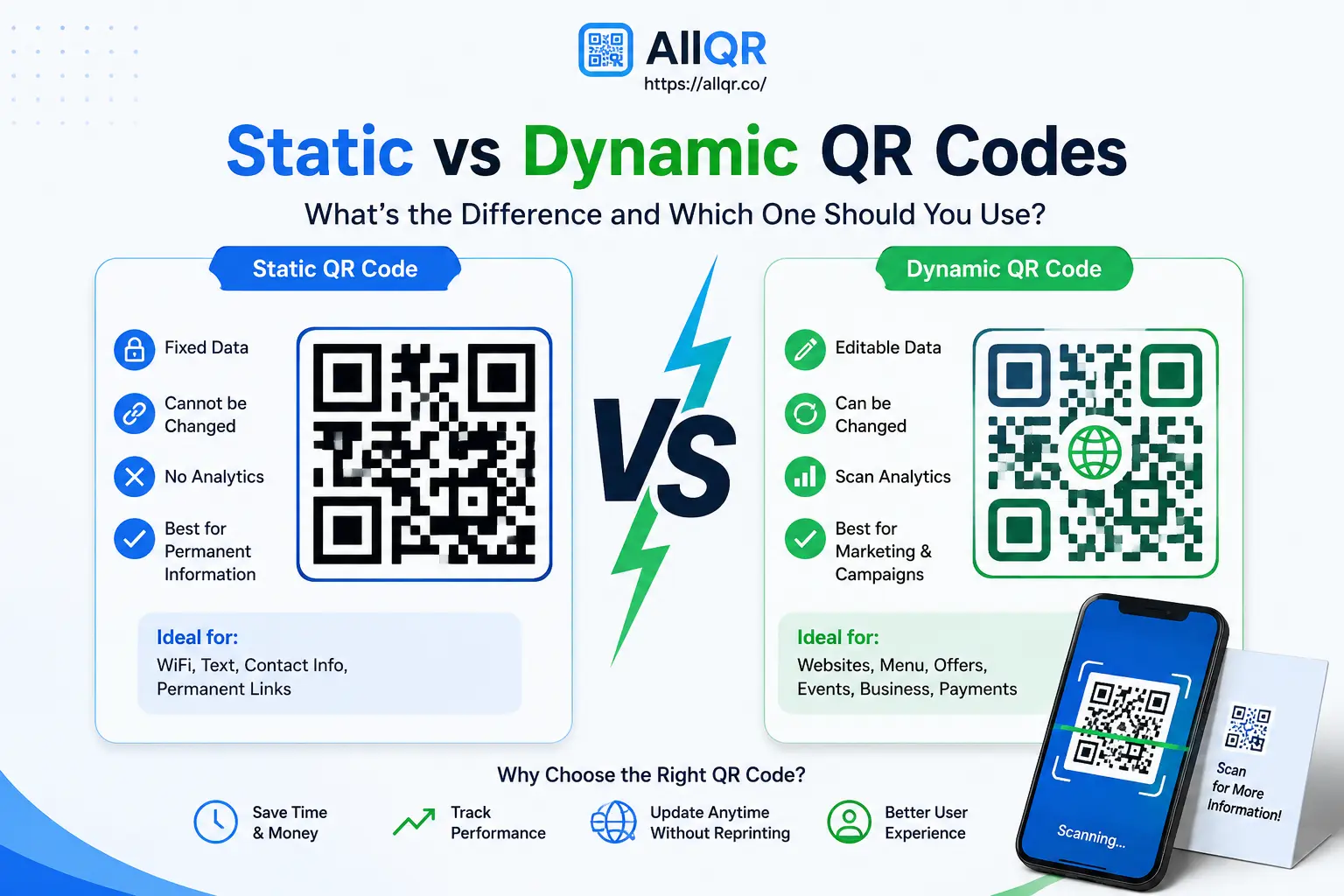
If you're creating a QR code for a business campaign, check whether you need a static or dynamic QR code before publishing it.
Step 5 – Test and Download
This is one of the most important steps.
Before printing or sharing your QR code:
- Scan it with your phone.
- Check that the correct page or information opens.
- Test it from different distances.
- Try it on both Android and iPhone if possible.
- Download the QR code in a suitable quality for your intended use.
For example, if you are printing the code on 500 restaurant flyers, test the final downloaded version before sending the flyers to print.
How to Create QR Codes for Different Purposes
Website
Use a website QR code to send visitors directly to your homepage, product page, booking page, or landing page.
Example: A clothing store can print a QR code on its packaging that opens its online store.
A WhatsApp QR code can take customers directly to a WhatsApp conversation.
This is useful for customer support, inquiries, bookings, and sales.
WiFi
A WiFi QR code lets guests connect to a network without manually typing a long password.
It's useful for cafes, hotels, offices, and homes.
A PDF QR code can provide quick access to a menu, brochure, price list, product catalog, or event document.
UPI
A UPI QR code can make payments easier for customers by opening their supported payment app with the required payment information.
Contact Card
A contact QR code can share business information such as your name, phone number, email, company, and website.
It's especially useful on business cards and event badges.
Tips Before Printing Your QR Code
Before printing, keep these practical points in mind:
- Keep enough white space around the QR code.
- Use strong contrast between the code and background.
- Don't make the QR code unnecessarily small.
- Test the printed version, not only the digital version.
- Avoid placing it on a busy image or patterned background.
- Keep the destination page mobile-friendly.
- Add a short CTA such as “Scan to View Menu” or “Scan to Chat on WhatsApp.”
Common QR Code Mistakes to Avoid
Some common mistakes can make a QR code difficult to use:
- Linking to the wrong URL
- Making the code too small
- Using very low image quality
- Removing the required quiet zone
- Using poor color contrast
- Adding too much decoration
- Not testing before printing
- Sending users to a page that doesn't work properly on mobile
A QR code should make the user's journey faster, not create another problem.
FAQs
Can I create a QR code for free?
Yes. You can use an online QR code generator to create QR codes for websites, WhatsApp, WiFi, PDFs, contact details, and other purposes.
Can I create a QR code without downloading software?
Yes. Online QR code generators work directly through your web browser, so you can create a QR code without installing additional software.
Can I create a QR code for my website?
Yes. Enter your website URL into a QR code generator, create the code, scan it to test the destination, and then download it.
Should I test a QR code before printing?
Absolutely. Always scan the final QR code before printing it in large quantities. This can help you catch incorrect URLs, poor contrast, or scanning problems.
What can I put inside a QR code?
Depending on the QR type, you can use a website URL, WhatsApp link, WiFi details, PDF, payment information, contact details, social profile, or other supported information.
Conclusion
Creating a QR code for free is much easier than many people expect. The key is choosing the right QR type, entering accurate information, keeping the design scannable, and testing it before sharing or printing.
Whether you need a QR code for a website, WhatsApp, WiFi, PDF, UPI payment, or contact information, an online QR code generator can help you create one quickly.
If you're ready to create your own code, try AllQR's Free QR Code Generator and create a QR code online for your next personal or business use.