Introduction
You can create a QR code in less than 30 seconds using a free QR code generator—you don't need coding skills or special software. All you need is the information you want people to access, such as a website URL, WhatsApp chat, WiFi details, or Instagram profile.
QR codes have become a practical way to connect physical materials with digital information. They appear on restaurant menus, business cards, packaging, posters, event tickets, advertisements, and product labels.
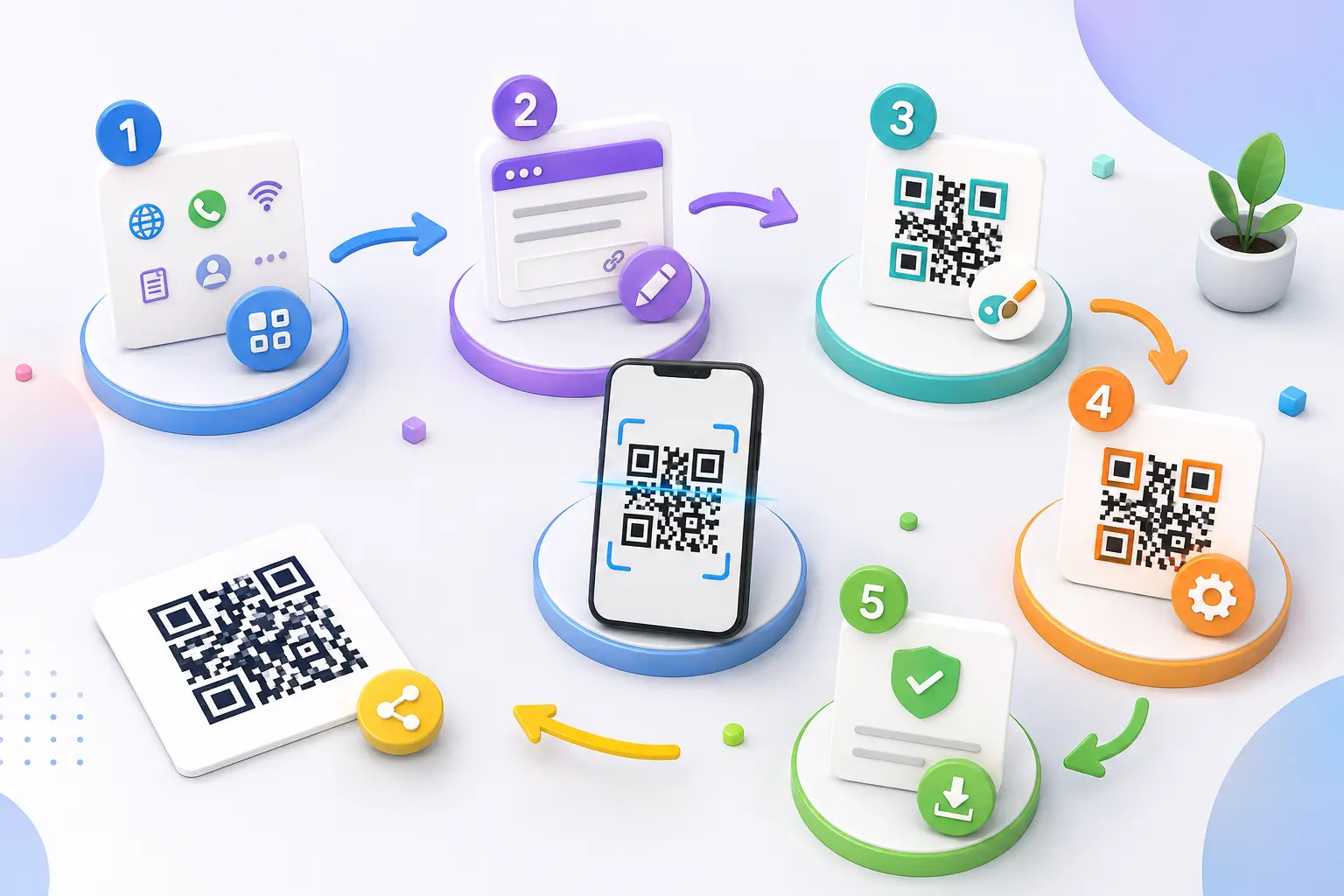
The basic process is simple: choose the QR code type, enter your information, generate the code, download it, and test it before sharing or printing. This guide walks through each step and explains what to check before using your QR code.
What Is a QR Code?
A QR code, short for Quick Response code, is a two-dimensional barcode that stores information in a pattern of black and white squares. A smartphone camera or QR scanner can read this pattern and open the information connected to it.
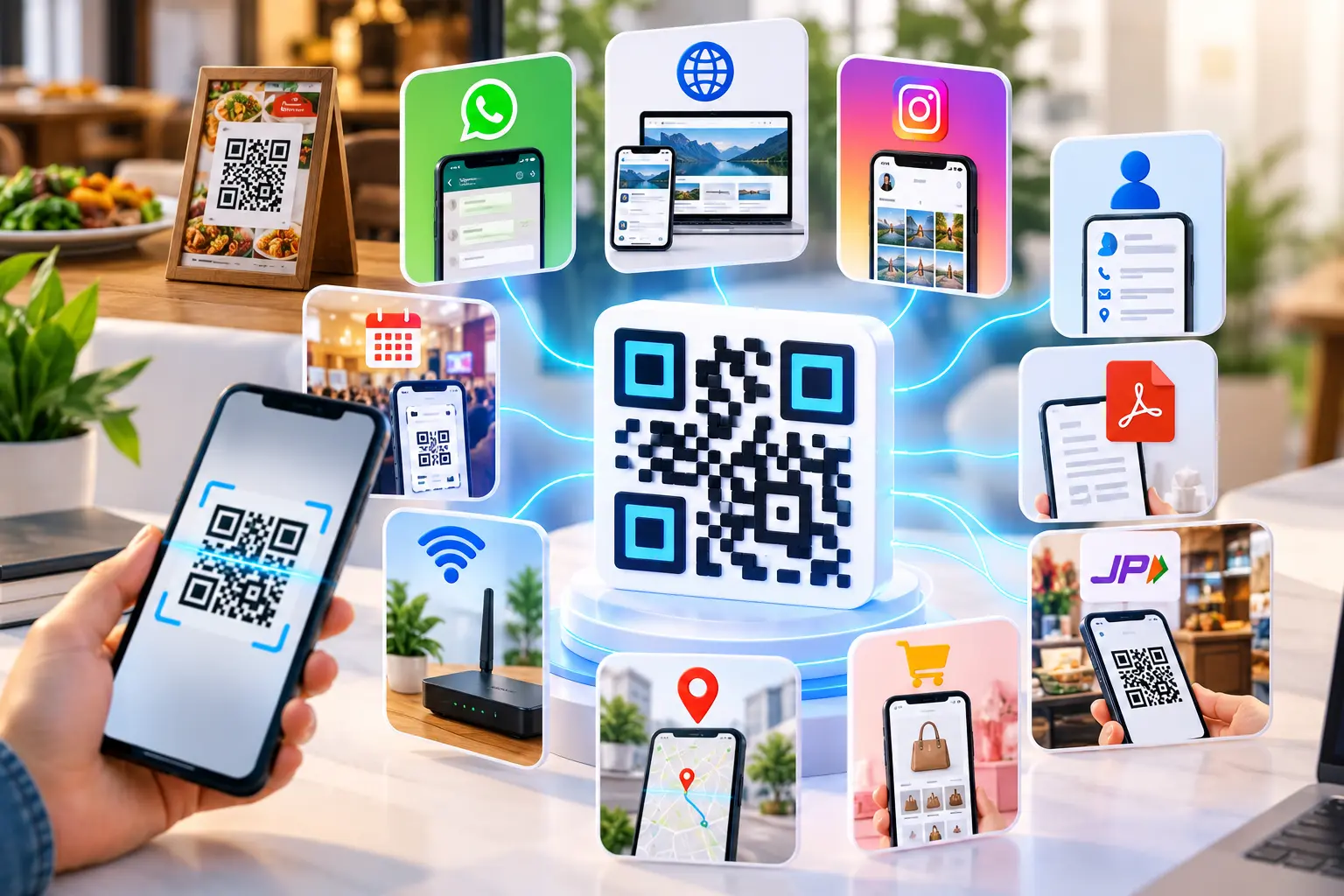
Depending on the QR code type, it can contain or point to different kinds of information, including:
- Website URLs
- WhatsApp conversations
- WiFi network credentials
- Instagram profiles
- Contact information
- Text messages
- Email addresses
- Digital menus
- Payment information
- Business landing pages
For example, a restaurant can place a QR code on a table that opens its digital menu. A business card can include another QR code that opens a digital contact profile.
The key benefit is convenience. Instead of asking someone to type a long URL, search for a social profile, or manually enter WiFi details, they can scan the code with their phone.
Step 1: Open a Free QR Code Generator
The first step is to choose a QR code generator that supports the type of information you want to share.
A good generator should make the process straightforward and provide clear options for different QR code purposes. For example, you may want to create a QR code for a website today and a WhatsApp or WiFi QR code later.
When selecting a tool, look for features such as:
- Website or URL QR codes
- WhatsApp QR codes
- WiFi QR codes
- Social media QR codes
- Contact or vCard QR codes
- Download options
- QR code customization
- Dynamic QR code support, where applicable
For a basic website QR code, the process usually takes only a few clicks.
If your goal is to share several destinations through one code, you can also learn more about how multi-link QR codes work.
Step 2: Select the Type of QR Code
Once the generator is open, choose the QR code type that matches your purpose.
This matters because different QR code types are designed to handle different kinds of information.
| QR Code Type | Common Use |
|---|---|
| URL | Website, landing page or online store |
| Start a WhatsApp conversation | |
| WiFi | Share network access |
| Open an Instagram profile | |
| vCard | Share contact information |
| Open an email address | |
| Text | Display plain text |
| Multi-link | Share several destinations from one scan |
For example, if you want customers to visit your website, select URL and enter your website address.
If you want people to contact your business through WhatsApp, select a WhatsApp QR option instead of simply creating a QR code containing your phone number.
Choosing the correct type at the beginning reduces the chance of creating a code that doesn't work as expected.
Step 3: Enter Your Information
Now enter the information you want the QR code to provide.
For a website QR code, this could simply be:
https://example.com
For other QR codes, you may need additional details.
Examples
Website
- Enter the complete website URL.
- Make sure the URL starts with https:// when appropriate.
- Enter the correct phone number.
- Check the country code.
- Make sure the number can receive WhatsApp messages.
WiFi
- Network name
- Password
- Security type
- Enter the correct Instagram profile URL.
Digital contact card
- Name
- Phone number
- Website
- Company information
Before generating the code, check your information carefully. A QR code can scan perfectly but still send users to the wrong destination if the original URL or details are incorrect.
For WhatsApp-specific use cases, you can also explore this guide to creating QR codes for WhatsApp.
Step 4: Generate the QR Code
After entering your information, click the Generate QR Code button.
The generator converts your information into a machine-readable QR pattern. For most standard QR codes, this happens almost instantly.
At this point, don't rush to download it.
Take a moment to check the preview and make sure:
- The QR pattern is complete.
- There are no unusual distortions.
- The code has enough contrast.
- Your selected destination is correct.
- Any logo or design element does not cover important QR patterns.
If you're creating a QR code for printing, remember that the final printed size matters. A QR code that looks clear on a large desktop screen may become difficult to scan when printed very small.
Step 5: Customize the QR Code Carefully
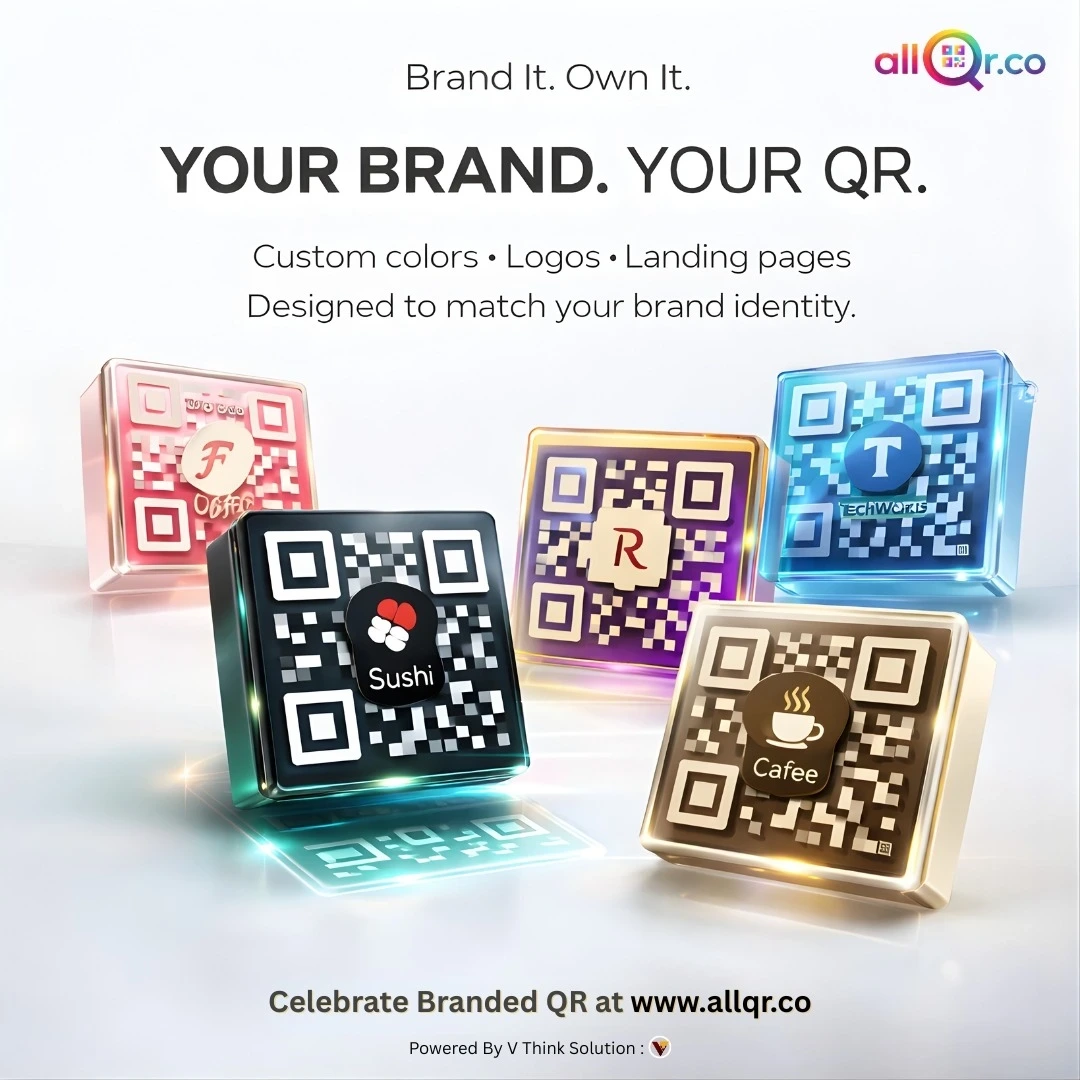
Many modern QR generators allow basic customization. You may be able to change colors, add a logo, select a different pattern style, or adjust the appearance of the QR code.
Customization can make a QR code fit better with a brand or marketing design. However, readability should always come first.
Follow these practical rules:
- Use strong contrast between the QR code and background.
- Keep the QR code pattern clear.
- Avoid placing busy images behind it.
- Don't remove the white space around the code.
- Keep logos reasonably small.
- Avoid extreme color combinations.
- Test the final design on multiple phones.
A visually attractive QR code is only useful if people can scan it reliably.
If you need to share several destinations from a single scan, a multi-link QR code can be more practical than creating separate codes for every destination.
Step 6: Download the QR Code
Once you're satisfied with the design, download the QR code in a suitable format.
Common options include:
- PNG: Convenient for websites, presentations and social media.
- SVG: Useful for print designs because it can be scaled without losing sharpness.
For example, if you're adding a QR code to an Instagram post or website banner, PNG may be convenient.
For business cards, packaging, posters, signage, or other printed materials, SVG can be useful when your design software supports it.
Keep the original QR file somewhere safe, especially if you're using it across multiple marketing materials.
Step 7: Test the QR Code Before Using It
This is one of the most important steps—and one that is often skipped.
Always scan the QR code before publishing or printing it.
Use at least one smartphone camera or QR scanner and confirm that it opens the intended destination.
For printed materials, test the actual printed version rather than testing only the digital file.
Test these points:
- Scan the QR code from different distances.
- Try it under normal lighting.
- Check it with another smartphone if possible.
- Confirm that the destination opens correctly.
- Check the page on mobile.
- Test again after printing.
If the QR code is going on a poster, menu, product package, or business card, consider testing the actual size at which customers will scan it.
A few seconds of testing can prevent hundreds of incorrectly printed materials.
Where Can You Use a Free QR Code?
QR codes are useful in both online and offline situations.
Business Cards
Add a QR code that opens your website, contact information, portfolio, or digital business card.
Restaurants and Cafés
Use QR codes for digital menus, ordering pages, feedback forms, or promotional offers.
Product Packaging
A QR code can direct customers to product information, instructions, warranty registration, or a company website.
Events
Event organizers can use QR codes for registration pages, tickets, schedules, maps, or contact information.
Marketing Materials
Add QR codes to flyers, brochures, posters, banners, newspaper advertisements, and promotional displays.
Social Media
A QR code can make it easier for customers to reach your Instagram profile, WhatsApp account, or other social channels.
For businesses that want to connect several social profiles and destinations, QR codes for WhatsApp, WiFi and Instagram can be useful for understanding different QR code applications.
Static vs Dynamic QR Codes: Which Should You Choose?
Not every QR code works in exactly the same way.
A static QR code generally stores the destination information directly in the QR pattern. Once created, the encoded information cannot normally be changed without creating a new QR code.
A dynamic QR code uses a changeable destination or redirect. This can allow the destination to be updated later without replacing the printed QR code, depending on the service and implementation.
| Feature | Static QR | Dynamic QR |
|---|---|---|
| Basic QR creation | Yes | Yes |
| Destination can be changed | Generally no | Generally yes |
| Useful for permanent information | Yes | Yes |
| Tracking options | Limited | Often available |
| Suitable for campaigns | Yes | Often better |
| Printed once and updated later | No | Often possible |
For a simple website address that will never change, a static QR code may be enough.
For marketing campaigns, printed materials, or campaigns where destinations may change, dynamic QR codes may provide more flexibility.
How to Create a QR Code in 30 Seconds
If you're in a hurry, the entire process can be reduced to these five steps:
| Time | Action |
|---|---|
| 0–5 seconds | Open a free QR code generator |
| 5–10 seconds | Select the QR code type |
| 10–20 seconds | Enter your information |
| 20–25 seconds | Generate and review the QR code |
| 25–30 seconds | Download and prepare it for testing |
The exact time depends on the type of QR code and the information you need to enter.
A simple URL can take only a few seconds. A WiFi or contact QR code may require additional fields.
The important part is that QR code creation itself is usually very quick. The testing stage should not be skipped just to meet a 30-second target.
Common QR Code Mistakes to Avoid
Creating a QR code is easy, but several small mistakes can make it difficult or impossible to use.
1. Incorrect URL
A single typo can send users to the wrong page or create a broken link.
2. Poor Contrast
A QR code with weak contrast may be difficult for smartphone cameras to recognize.
3. Very Small Size
Don't make a QR code smaller than necessary, especially for printed materials.
4. Too Much Customization
Changing the design too aggressively can affect scan reliability.
5. No Testing
Always test before publishing, printing, or distributing the QR code.
6. Ignoring the Destination Page
The QR code may scan correctly, but the website behind it could still have a poor mobile experience. Check the complete journey, not just the QR scan.
FAQ: Creating a Free QR Code
1.Can I create a QR code for free?
Yes. Many QR code generators allow users to create basic QR codes without paying. The available features, customization options, analytics and dynamic functionality can vary between services.
2.How long does it take to create a QR code?
A simple URL QR code can usually be created within seconds. If you need to enter additional information, such as WiFi credentials or contact details, it may take slightly longer.
3.Can I create a QR code for WhatsApp?
Yes. A WhatsApp QR code can direct users to a WhatsApp conversation or profile, depending on the tool and setup. Always verify the phone number and test the QR code before publishing it.
4.Can I change a QR code after printing it?
It depends on the type of QR code. Static QR codes generally cannot have their encoded destination changed, while dynamic QR codes may allow the destination to be updated without replacing the printed QR code.
Conclusion
Creating a free QR code can take less than 30 seconds when you already know what information you want to share. The basic process is straightforward: choose the QR type, enter your information, generate the code, download it, and test it.
For simple website links, a standard QR code may be all you need. For campaigns where destinations can change or performance tracking matters, a dynamic QR code may be a better fit. Whatever type you choose, scan testing, good contrast, sufficient size, and an accurate destination are the most important factors for a reliable QR code experience.