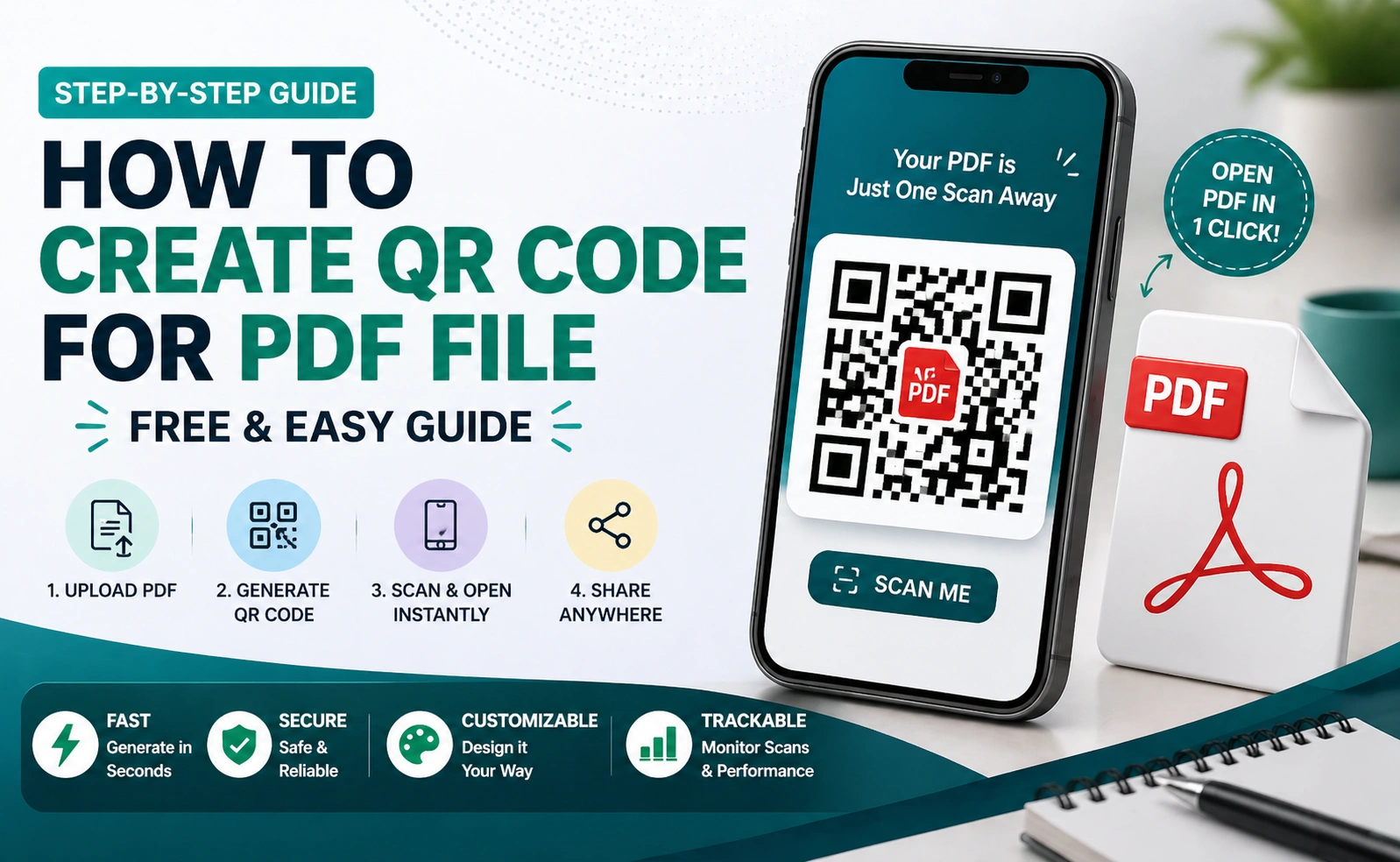
Have you ever needed to share a PDF quickly—maybe a brochure, notes, menu, or business document—but sending links or files felt messy?
That’s where QR codes make life simple.
Instead of asking people to download files or type long links, you can just show a QR code. One scan, and your PDF opens instantly. No confusion, no extra steps.
Whether you are a student, business owner, or marketer, using a QR code for PDF files can save time and improve user experience.
In this guide, you’ll learn how to create a QR code for a PDF file, how to use it, and why tools like
→ Visit
make the process fast and free.
What is a QR Code for PDF?
A QR code for PDF is a scannable code that links directly to a PDF file. <P>PR</P>
When someone scans the code:
- The PDF opens instantly on their phone
- No need to download manually
- No typing URLs
→ It’s basically a smart shortcut to your document
You can create one easily using:
→Visit
Benefits of Using QR Code for PDF
1. Instant Access
No need to:
- Send files
- Upload again
- Explain steps
→ Just scan and open
2. Mobile Friendly
Most users browse on mobile.
→ QR codes make PDF access one-tap easy
3. Professional Look
Instead of sending:
- Long links
→ Use QR:
- Clean
- Modern
- Professional
4. Easy Sharing
You can place QR code on:
- Posters
- Business cards
- Packaging
- Emails
5. Track Performance (Advanced)
Using tools like
→ Visit
→ You can:
- Track clicks
- Analyze users
Types of QR Codes for PDF
1. Static QR Code
- Fixed link
- Cannot edit later
- Simple use
→ Best for: personal use
2. Dynamic QR Code
- Editable link
- Track scans
- Update PDF anytime
→ Best for: business & marketing
How to Create QR Code for PDF File
Step 1: Upload Your PDF
Upload your PDF to:
- Website
- Google Drive
- Hosting server
→ Get the file link
Step 2: Open QR Generator
→ Visit:
Step 3: Paste PDF Link
- Add your PDF URL
- Select QR type
Step 4: Customize QR Code
- Add logo
- Change color
- Add frame
→ Makes your QR more attractive
Step 5: Download QR Code
- Use high quality
- Save as PNG/WebP
→ Now ready to use
Smart Use (Interlink Strategy)
To get better results, combine QR with:
This helps:
- Manage multiple links
- Track performance
- Improve campaigns
Where You Can Use PDF QR Codes
1. Education
- Notes
- Study materials
- Assignments
2. Business
- Brochures
- Company profile
- Reports
3. Restaurants
- Menu cards
- Offers
4. Events
- Invitations
- Schedules
5. Tips for Best Results
✔ Use short and clean PDF links
✔ Always test QR before sharing
✔ Use high-quality image
✔ Add CTA like “Scan to View PDF”
✔ Keep file size optimized
Quick Answer
How to create QR code for PDF file?
Upload your PDF online, copy the file link, go to a QR code generator like AllQR, paste the link, generate the QR code, and download it. Users can scan it to open the PDF instantly.
Frequently Asked Questions (FAQ)
1. Is QR code for PDF free?
Yes, you can create QR codes for PDF files for free using tools like AllQR.
2. Can I edit the PDF after creating QR?
If you use dynamic QR code, yes. Otherwise, you need to create a new one.
3. Does QR code work on all phones?
Yes, all modern smartphones support QR scanning.
4. Where should I host my PDF?
You can use:
- Your website
- Google Drive
- Cloud storage
5. Can I track QR scans?
Yes, using advanced tools like URL shorteners.
6. Is it safe to use QR codes?
Yes, as long as the link is secure and trusted.
Conclusion
Creating a QR code for PDF file is one of the easiest ways to share documents quickly and professionally.
Instead of sending files again and again, you can just use one QR code and let users access your content instantly.
With tools like
→ Visit
you can create QR codes in seconds without any technical skills.
Final Thought
In today’s digital world, simplicity wins.
QR codes remove extra steps, save time, and improve user experience.
→ Start using QR codes for your PDFs today and make sharing smarter.